
Every skate on SkateTrack starts on your wrist. With an Apple Watch, the SkateTrack app records the skate and sends it in the moment you stop. With a Fitbit, you tell SkateTrack when you skated and it reads that stretch from Google Health. This page walks through both, screen by screen, from the first time you open the app to the skate appearing on your portal. If you have not set up your account yet, start with Getting Started and come back.
- Which path is yours
- Apple Watch: setting up the app
- Apple Watch: recording the skate
- Fitbit: connecting Google Health
- Fitbit: timing the skate with the app
- Fitbit: entering a skate on the website
- When a skate does not show up
- Getting a clean recording
- Changing a skate afterwards
1. Which path is yours
| Apple Watch | Fitbit | |
|---|---|---|
| What records the skate | The SkateTrack app on the Watch, as a workout. | Your Fitbit, the way it records any activity. |
| What you need | An iPhone with the SkateTrack app, connected to your account once. | Your Fitbit synced to its app on your phone, and Google Health connected to your account once. |
| How SkateTrack gets it | Your phone sends the skate when you stop it. | SkateTrack imports the window you give it from Google Health, timed in the app or typed on the website. |
| When it appears | Within a minute of stopping. | As soon as your Fitbit has synced. If it has not, SkateTrack keeps trying for you. |
Whichever you wear, the skate ends up on the same portal, drawn the same way. The effort score is the one place the watch matters: each skate is scored against your five most recent skates from the same watch, never against the other's, because the two do not measure heart rate and distance alike. If you only ever wear one, you will never notice. If you switch watches, or wear both, your Apple Watch skates and your Fitbit skates each keep their own run of scores, and a score from one is not compared with one from the other.
2. Apple Watch: setting up the app
This is done once. Afterwards, recording a skate is a tap on the Watch to start and a slide to stop.
Install the app
Install SkateTrack from the App Store on your iPhone; the badge on your portal opens the listing. The Watch app comes with it. If it does not appear on your Watch on its own, open the Watch app on your iPhone, scroll to Available Apps, and install SkateTrack from there.
Connect it to your account
- Open SkateTrack on your iPhone. The first screen says No session running, which is right: skates are started from the Watch.
- Tap the gear in the top right corner to open Settings, then tap Sign in to SkateTrack.
- Your iPhone asks whether SkateTrack may use skatetrack.com to sign in. Tap Continue. A sign-in sheet opens on the SkateTrack site. Sign in the way you usually do, with your password, Google or Apple.
- The sheet asks Connect your iPhone to SkateTrack?, naming the phone and the account it will send skates to. Tap Connect. The sheet closes, and Settings now reads Connected as your name, with your account type beneath it.
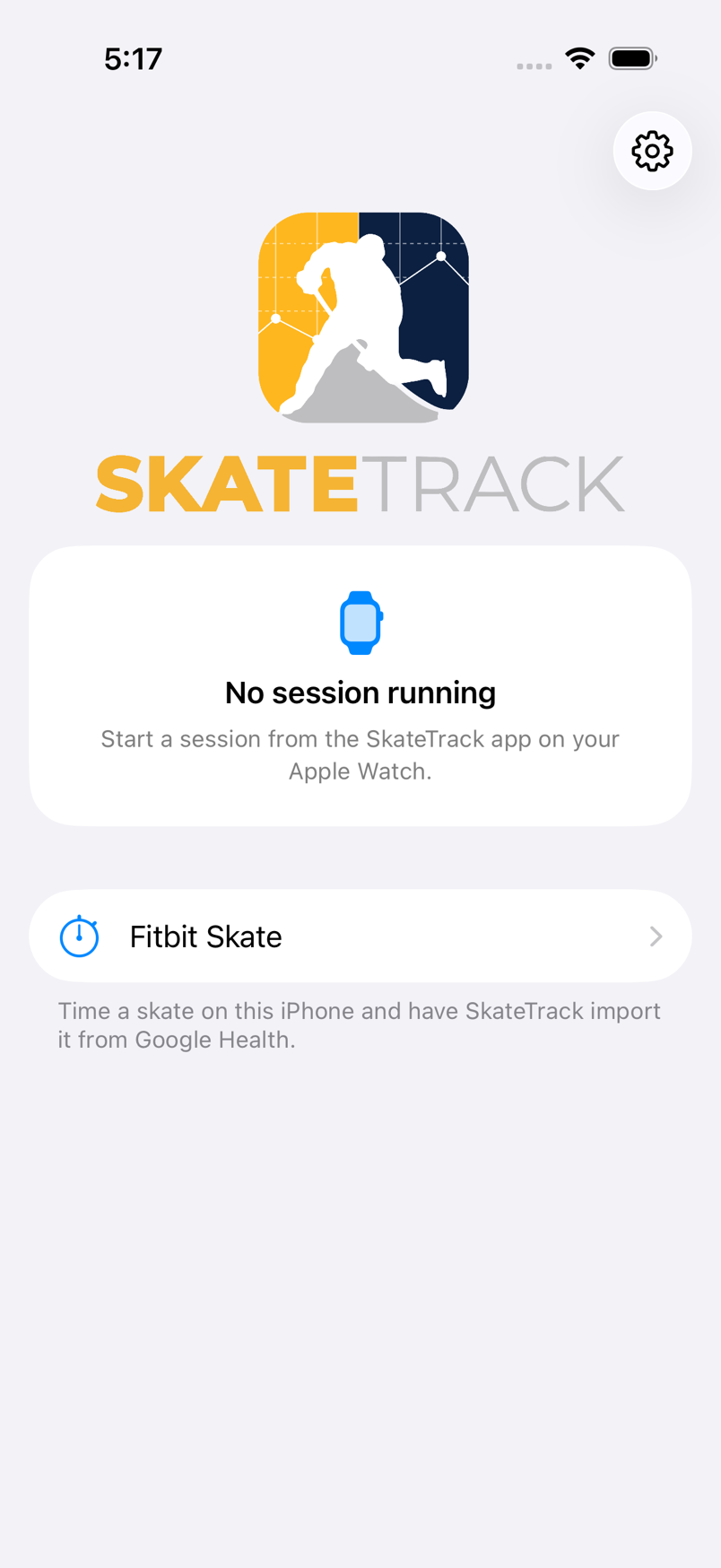
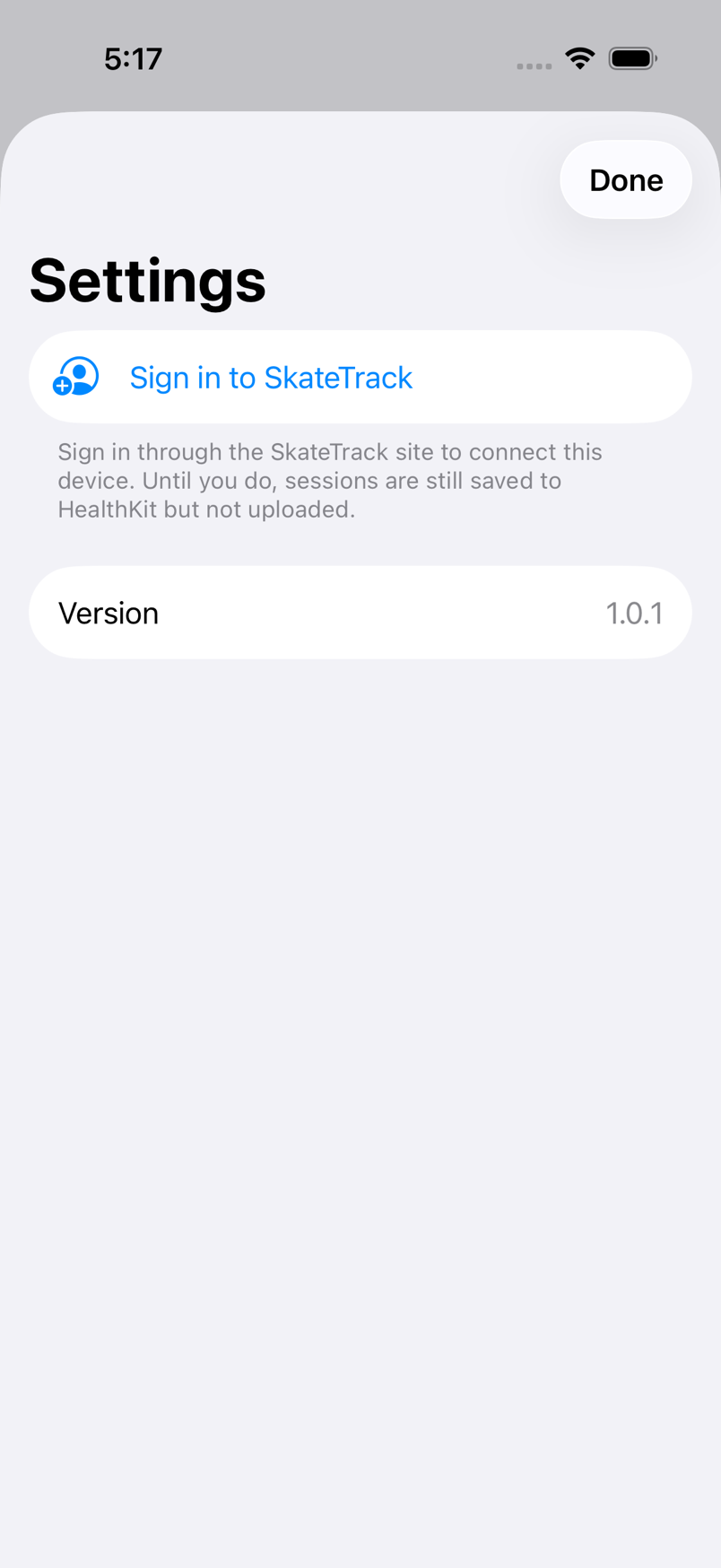
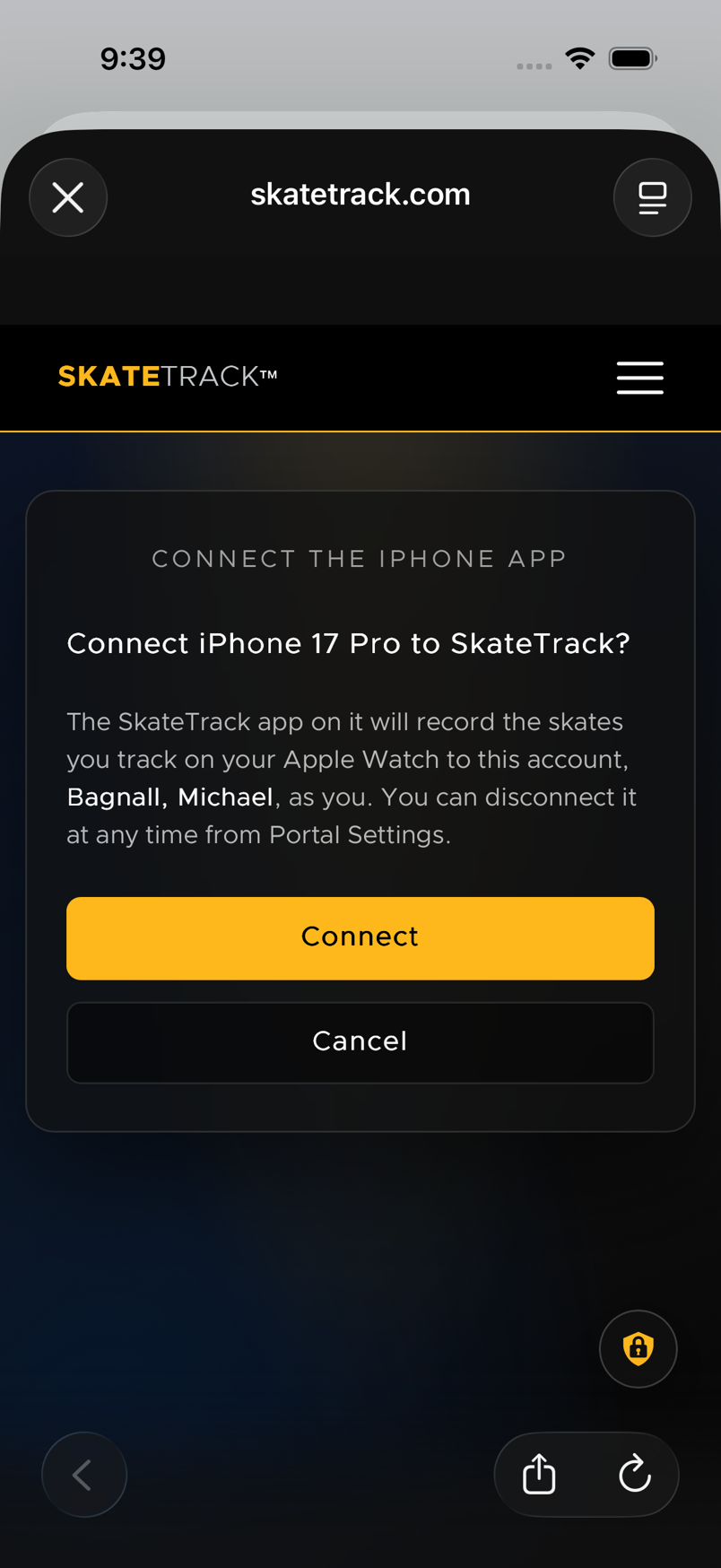
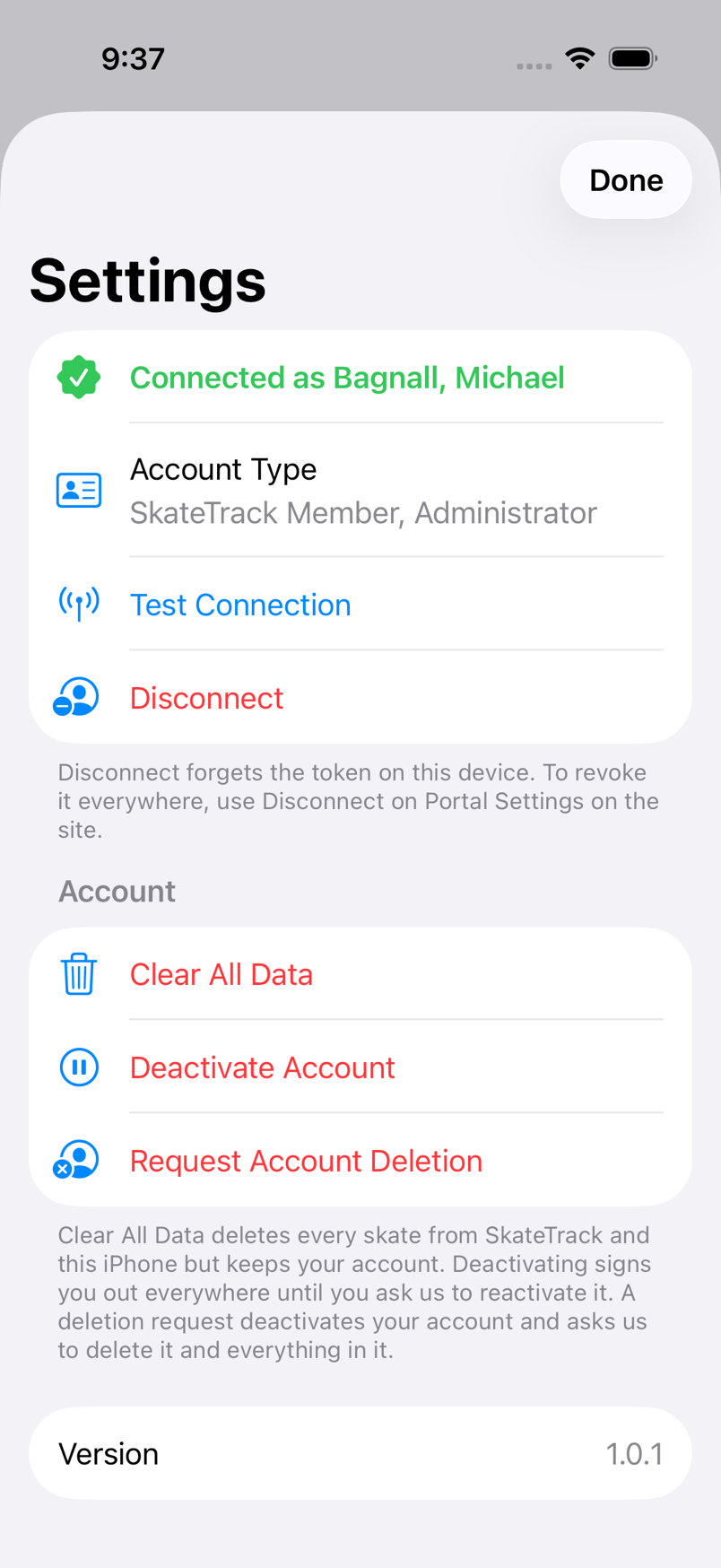
Nothing is typed or copied. Test Connection on the same screen checks the link whenever you like. One phone per account: connecting a second phone replaces the first. The iPhone app page in your portal settings shows which phone is connected and when it last sent a skate, and it is where you cut off a phone you no longer have.
You can skate before you connect. A skate recorded first is kept on the phone and sent as soon as the app is connected.
Allow it to read your health data
The first time you use it, SkateTrack asks for permission to record workouts and to read your heart rate, active energy and distance, and on the phone your resting heart rate, VO2 max and weight. Allow all of them: heart rate is the skate, distance and energy are the charts, and the rest sharpen the calorie and fitness numbers. The phone also asks once to use your location, so it can note where a skate was. That one is optional; you can always type the rink yourself.
3. Apple Watch: recording the skate
Before you step on
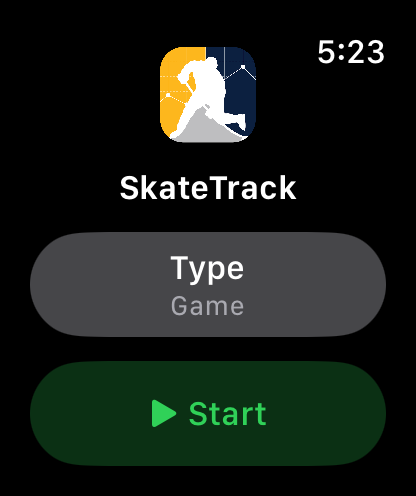
- Open SkateTrack on your Watch. The screen shows the SkateTrack logo, the type of skate, and a green Start button.
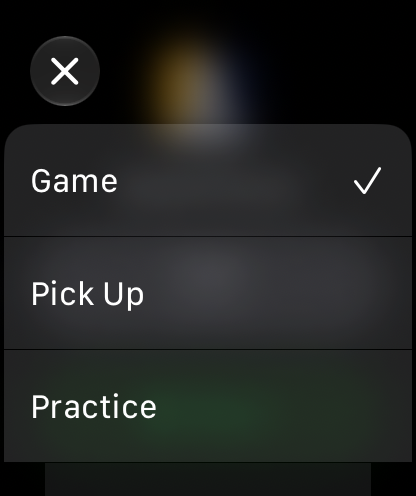
- Tap the type and choose Game, Pick Up, Practice or Stick Time. It starts at Game. This matters: for a game or pick up, SkateTrack finds your shifts and scores your effort on them alone; a practice or stick time has no bench, so the whole session counts. The type cannot be changed after the skate, so pick it now.
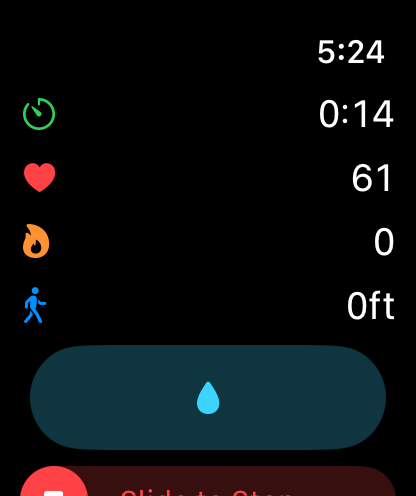
- Tap Start as you step onto the ice. The Watch begins a workout and the screen switches to the live view: time elapsed, heart rate, calories and distance.
Wear the Watch snug and under the cuff of your glove. A loose watch drops heart rate readings, and time with no readings is simply missing from the skate.
During the skate
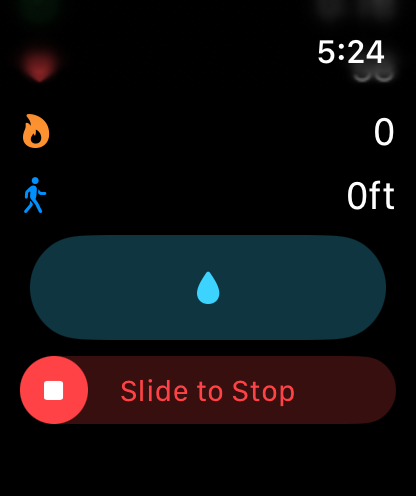
Leave it running through the whole skate, bench time included; SkateTrack separates your shifts from the bench afterwards. Tap the blue drop to turn on Water Lock, which stops sweat, a sleeve or a glove from tapping the screen; turn the Digital Crown to unlock it when you want the screen back. Stopping takes a deliberate slide rather than a tap, for the same reason.
Stopping the skate
- As you come off the ice, drag the red circle across Slide to Stop. The Watch taps your wrist once and the workout ends.
- Your iPhone picks the session up and sends it to SkateTrack. In the iPhone app the skate is at the top of History, marked Pending while it uploads, Details pending while the phone gathers every heart rate reading, then Synced. That usually takes under a minute, and you do not have to watch it.
- The skate is on your portal. View skate on SkateTrack, on the skate's screen in the app, opens it.
Your iPhone does the sending, so the skate goes up once the phone and the Watch are back within range of each other. A phone left in the locker room catches up when you get back to it.
Adding the score, your team and the rink
The Watch records the skate; it cannot know the score. In the iPhone app, tap the skate in History. For a game, the Score section takes goals, assists, penalty minutes and plus/minus; every skate takes your team and up to 200 words of notes. Tap Save and the app sends them up. Where you skated is filled in with the city you were in when the skate ended, if you allowed location, and the rink itself is typed on the site. You can do all of this later instead, with Edit Skate beside the skate on your portal.
4. Fitbit: connecting Google Health
SkateTrack does not talk to your Fitbit. Your Fitbit syncs to your Google account, as it always has, and SkateTrack reads the skate from there through Google Health. So two connections have to be in place: your Fitbit to the Fitbit or Google Health app on your phone, which you already have, and Google Health to your SkateTrack account, which you make once.
Connect Google Health
- Open Google Health in your portal settings. It is also Connect Google Health under Add a skate at the foot of your portal. Press Connect to Google Health.
- Google asks you to sign in. Use the Google account your Fitbit syncs to, the one you sign in to the Fitbit app with.
- Google lists what SkateTrack is asking to read: your heart rate, distance, calories and a few more. Allow them all; a measurement you decline is a chart SkateTrack cannot draw.
- You are returned to SkateTrack. The page now reads Connected to Google Health and shows your tracker, its battery, when it last synced, and the Fitbit account it belongs to.
The connection lasts until you end it. If it expires or you revoke it from your Google account, the same page says so and offers Reconnect to Google Health, and the skate form and the app both tell you when SkateTrack cannot read Google Health. Disconnect my Google Health account ends it whenever you choose; the skates already recorded stay.
Sync before you import
SkateTrack can only read what your Fitbit has handed to Google. A Fitbit syncs when it syncs, often only when you next open its app, so after a skate open the Fitbit or Google Health app on your phone and let it finish syncing before you import. The Last synced line on the Google Health settings page tells you whether the skate is there yet. If you import too early, nothing is lost: SkateTrack keeps the skate and tries again, as the next section explains.
5. Fitbit: timing the skate with the app
With the SkateTrack app on your phone, connected to your account the same way as for an Apple Watch (install it, tap the gear, Sign in to SkateTrack), the phone is your stopwatch. Nothing is measured on the phone. It records when you started and stopped, and SkateTrack imports that stretch from Google Health.
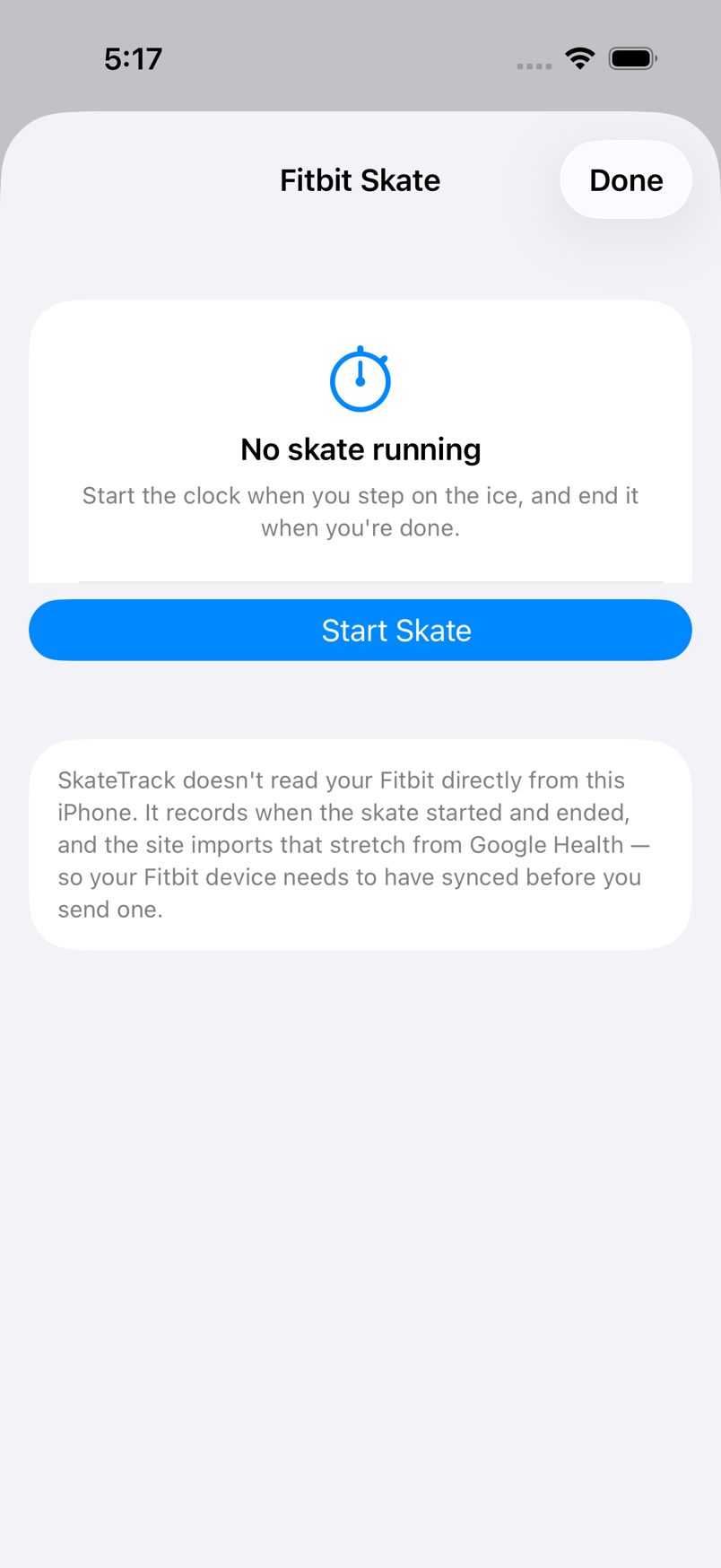
- Open SkateTrack on your phone and tap Fitbit Skate. The screen says No skate running.
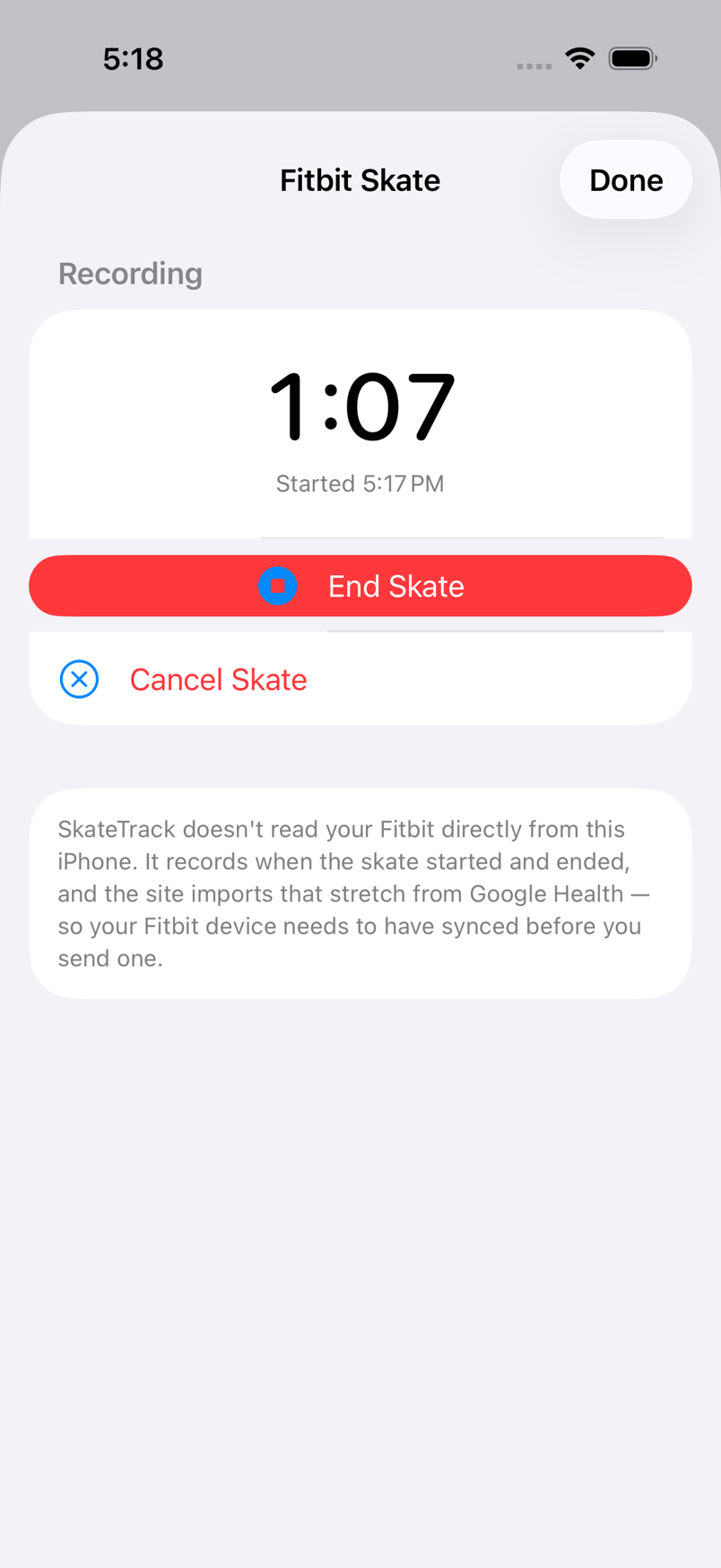
- Tap Start Skate as you step onto the ice. A clock counts up, with the time you started beneath it. Put the phone away; it keeps timing in your bag.
- As you come off, tap End Skate. Cancel Skate throws the clock away and sends nothing, for the stick time that turned into standing around. A skate under a minute long is discarded, since SkateTrack cannot import one.
- The app opens the skate you just timed. Choose the type, Game, Pick Up, Practice or Stick Time; for a game, enter goals, assists, penalty minutes and plus/minus; add the rink, your team and any notes. The location starts as the city you were in when the skate ended, if you allowed location, and you type the rink over it.
- Tap Send to SkateTrack. If your Fitbit has synced, the skate is imported on the spot and the screen shows what Google Health had for that stretch: average and top heart rate, calories, distance, and for a game or pick up your shifts and ice time. View skate on SkateTrack opens the skate page. If your Fitbit has not synced, the skate is marked Importing and SkateTrack takes it from there.
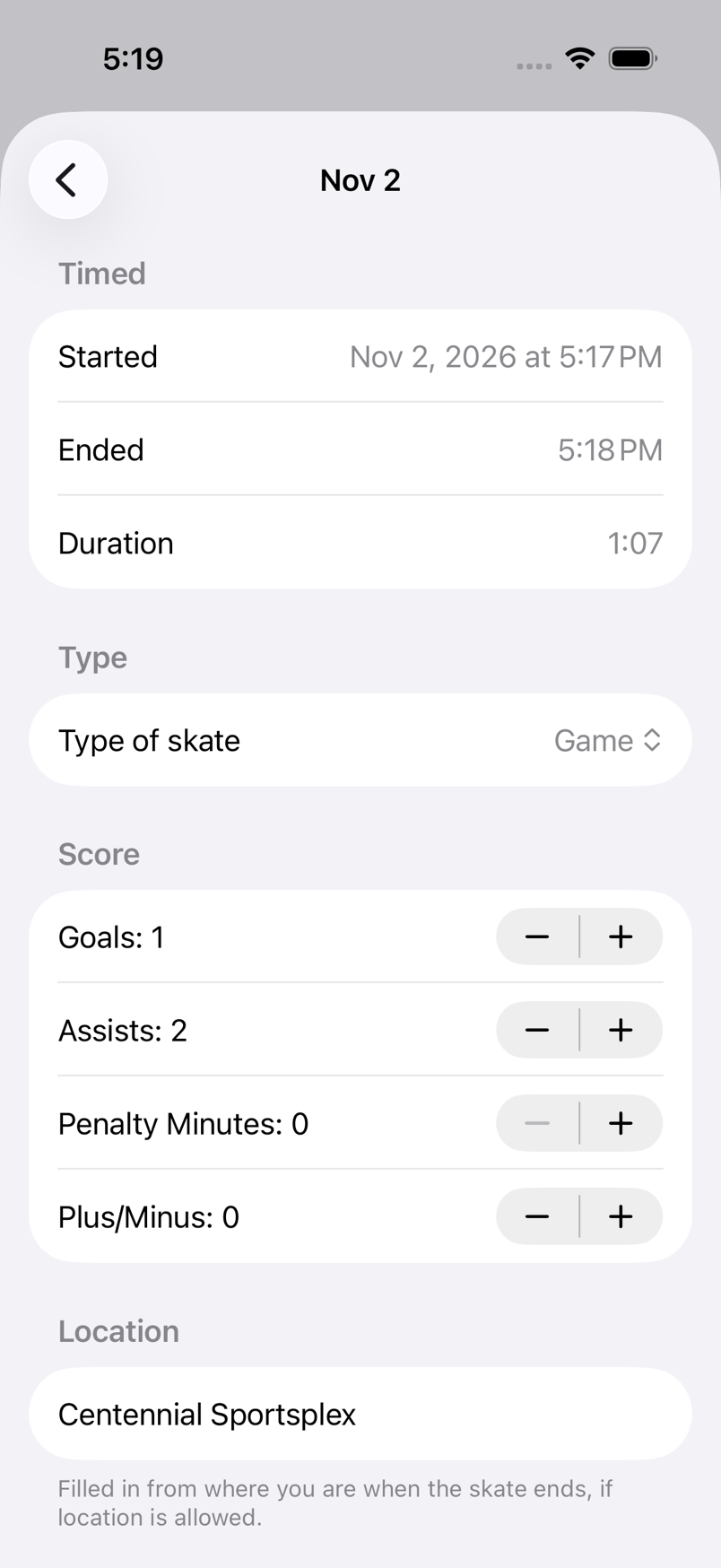
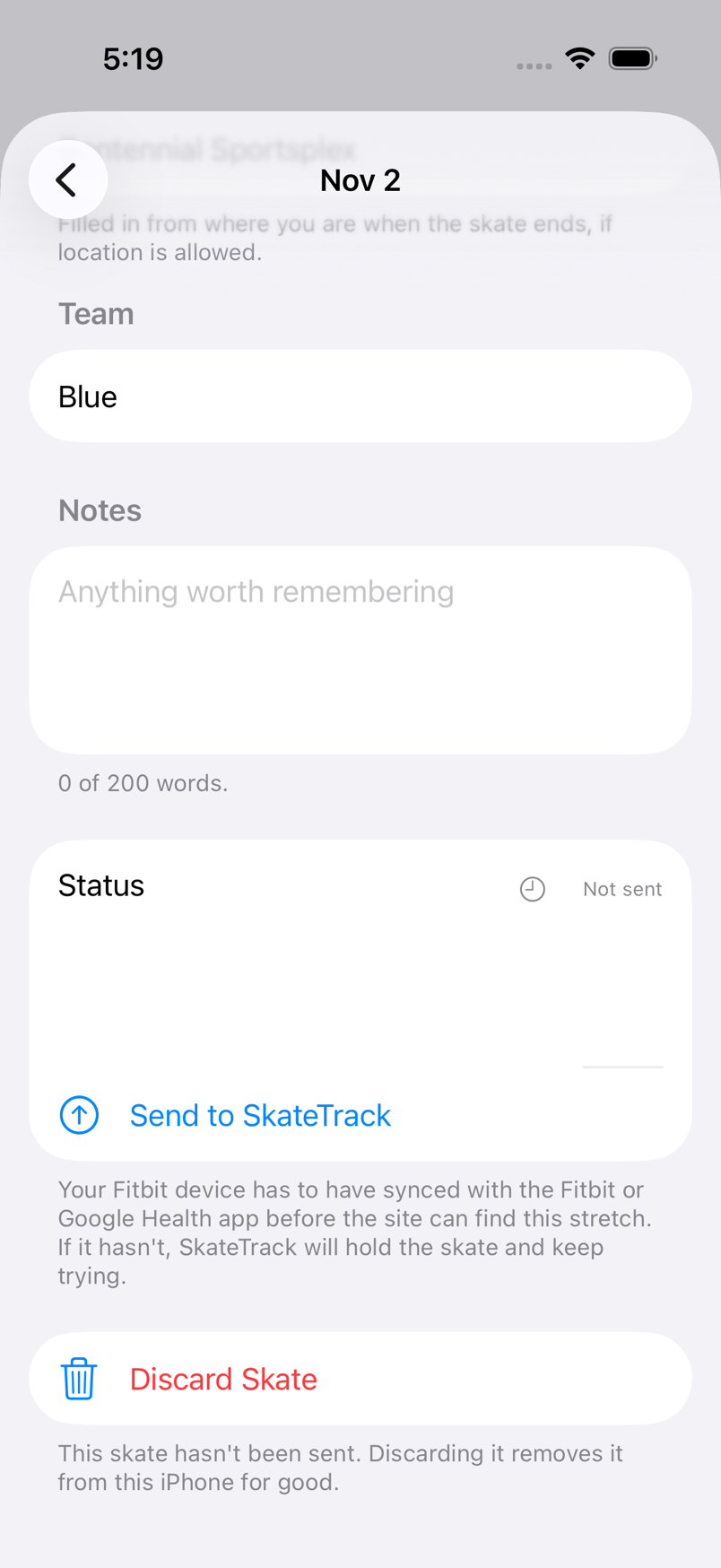
Until you send a skate, everything about it can still be changed on this screen. Once sent, changes are made on the site with Edit Skate; sending again does not import it again. Skates you have timed stay listed under Skates, each with its status beside it.
When the import has to wait
Send a skate straight off the ice and your Fitbit has probably not synced yet, so Google Health has nothing for that stretch. That is not a failure. SkateTrack keeps the skate and checks again on its own: a quarter of an hour later, then after an hour, four hours and twelve hours, so a watch that syncs when you open its app the next morning is still caught. In the app the skate reads Importing, with the time of the next try. If every try comes up empty it reads Needs a nudge: sync your Fitbit and tap Try Now. The Fitbit imports page in your portal settings lists the same waiting skates, with Try Now and Remove beside each.
6. Fitbit: entering a skate on the website
No phone app, or you forgot to start the clock? Any skate your Fitbit recorded can be entered on the website afterwards, as long as you know roughly when it started and how long it ran. Google Health has to be connected and your Fitbit synced first.
- On your portal, press Enter a skate under Add a skate, or open the skate form directly.
- Enter the date and time you stepped onto the ice, to the minute, and choose how long you skated, from 30 minutes to two hours.
- Choose the type of skate: League Game, Pickup/Shinny/Open Hockey, Practice, Stick Time or Open Skate. For a league game, the score fields appear: goals, assists, +/- and PIM.
- Add your team, the rink (your home rink from your profile is already filled in) and any notes.
- Press Retrieve Data. SkateTrack reads that window from Google Health and shows you what it found before anything is kept.
- If it looks like your skate, press Confirm This Skate and it joins your portal. If the heart rate starts late or ends early, press Go Back, adjust the start time or the length, and retrieve again.
The form holds you to three things: the skate has to be over, it cannot run more than two hours, and Google Health has to be connected (the form offers a reconnect link if it is not). A skate that runs past midnight is fine. If the preview is empty, your Fitbit has not synced that stretch yet: sync it and retrieve again.
A window you have already recorded is not imported twice. Enter the same start time and length again and Retrieve Data opens the skate you have, with a note saying so. To read that window from Google Health afresh, delete the skate first, then enter it again.
7. When a skate does not show up
- Apple Watch: the app is not connected. Open the iPhone app and tap the gear. If it offers Sign in to SkateTrack instead of showing Connected as your name, connect it; the waiting skates go up on their own once you do. Disconnecting the phone from the iPhone app page in portal settings signs the app out in the same way.
- Apple Watch: the skate reads Pending or Failed. Tap it in History. The reason is printed under Upload, and Retry upload sends it again. A skate under a minute long is refused.
- Apple Watch: the skate reads Details pending. The summary is on the site but the phone has not read every heart rate sample yet. Give it a minute, or tap Sync details.
- Fitbit: the skate reads Importing. Your Fitbit has not synced. Open the Fitbit or Google Health app on your phone, wait for the sync, then tap Try Now in the app or on Fitbit imports.
- Fitbit: SkateTrack cannot read Google Health. The connection has expired or was revoked. Open Google Health in portal settings, press Reconnect to Google Health, then try the skate again.
- Fitbit: the preview is empty or cuts off. Either the window is wrong or the watch has not synced that far. Check Last synced on the Google Health page, then go back and adjust the start time or the length.
- The skate is there but the numbers look thin. A loose watch misses heart rate readings. Snug it up next time; Your Effort Score says why it matters.
8. Getting a clean recording
- Start and stop at the ice. In a game, time after the buzzer is noise. In a practice or stick time, where the whole session counts, the minutes spent unlacing your skates lower the score outright.
- Pick the right type. Game and pick up get shifts; practice, stick time and open skate count as continuous ice time. The type cannot be changed afterwards.
- Snug watch, under the glove cuff. The less your watch sees, the less of your effort it can give you credit for.
- One watch per skate, and the same one skate after skate. SkateTrack compares each skate only with your recent skates on the same device, so sticking with one gives it a steady baseline.
- Fitbit: sync before you import. Open the Fitbit or Google Health app after the skate and let it finish.
9. Changing a skate afterwards
Two links sit beside every skate on your portal. Edit Skate changes what no watch records: the score line for a league game, your team, the rink, your notes, and who can see the skate. Delete Skate clears it for good, after asking you to confirm. An Apple Watch skate can also be edited and deleted from its screen in the iPhone app, and a delete there deletes it on the site too.
What the watch measured cannot be edited, and neither can the type of skate. A Fitbit skate entered with the wrong window or the wrong type is one to delete and enter again. For an Apple Watch skate, Re-sync from Health on its screen in the app reads the workout from your phone's Health data again, which is the fix when a skate uploaded before all of its readings had arrived.
Once the skate is on your portal, Your Effort Score explains the number it was given, and Getting Started walks through the rest of the skate page.